 Panelift
Pick the window. It gets the screen.
Panelift treats your Mac as a list of windows and displays you can aim at. Everything on this page is about getting to the right one and being able to read it.
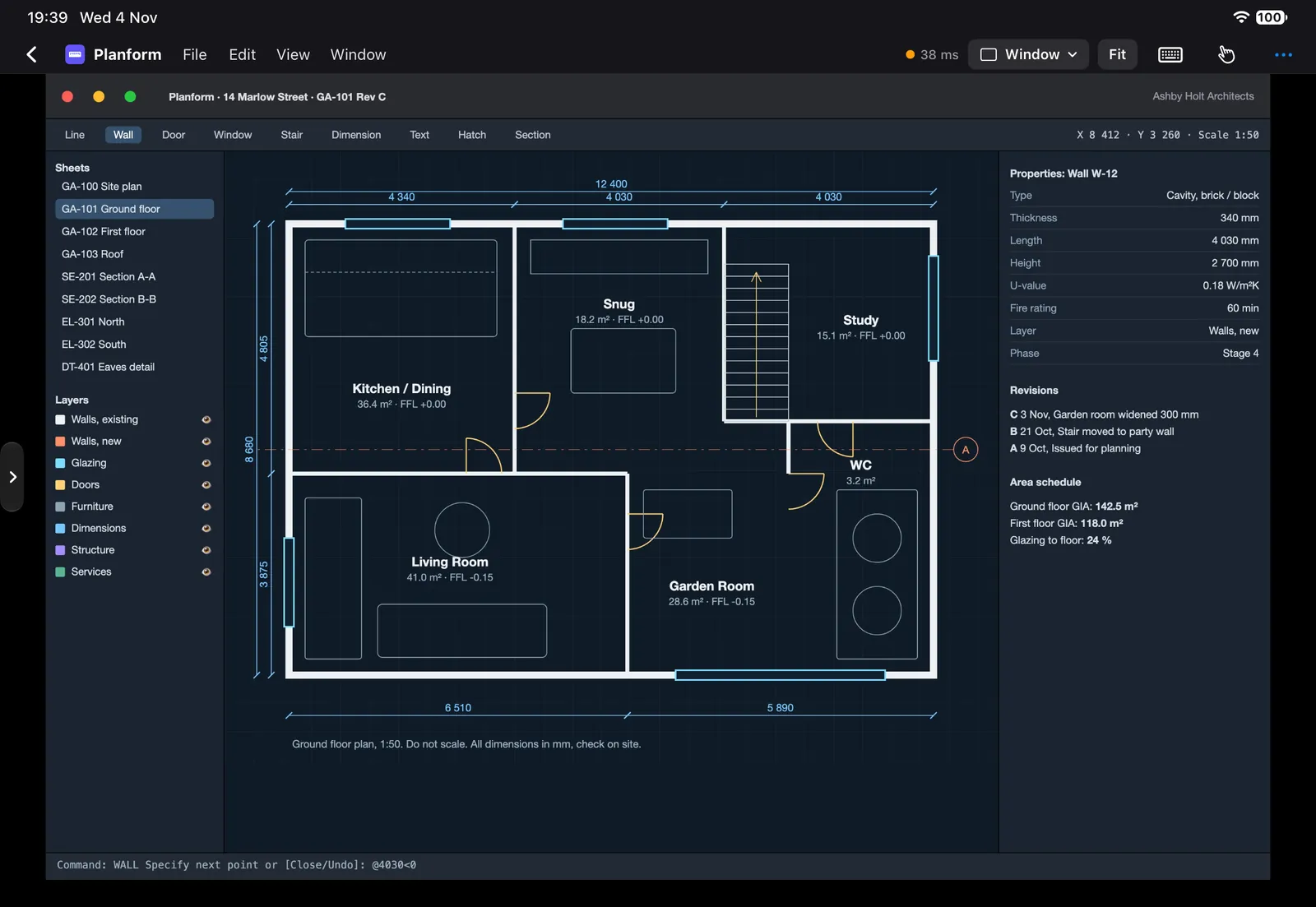
Your Mac, as a list
Home has three tabs.
- Windows. Every open window with a live thumbnail, app icon and title. Most recent first.
- Desktop. Every display, with a count of the windows on it.
- Saved. Views you've kept.
Search by app or title. Prefer a list to a grid? There's a list. Long-press a window on iPad to open it straight into Split or Free layout.
macOS only reports on-screen windows, so a minimised window or one on another Space won't be listed. "Can't find the window you're looking for?" sits at the bottom of the list, and Use Desktop is right next to it.


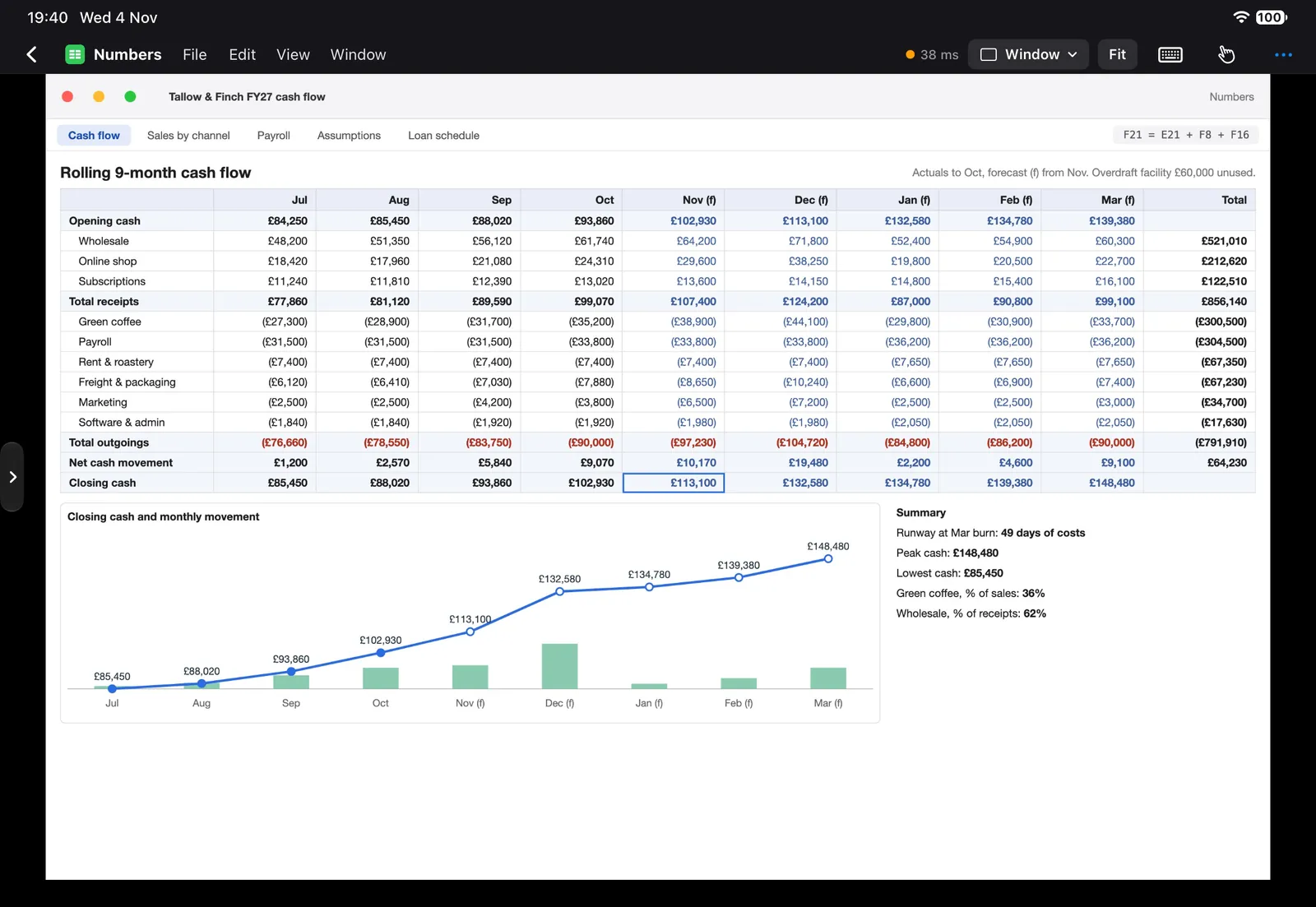
Twelve example windows from different kinds of work.
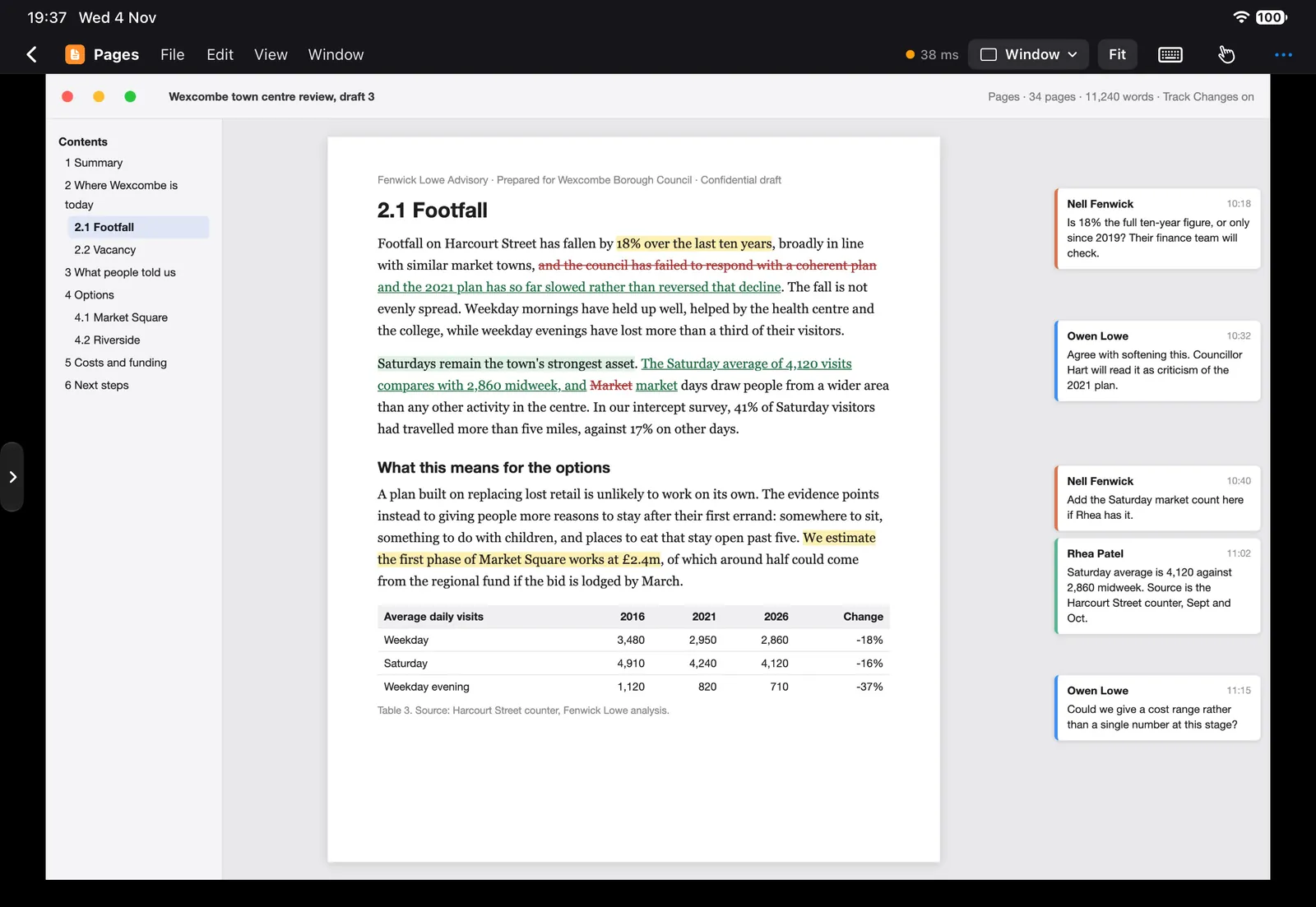
The whole screen, for one thing
Tap a window and Panelift crops to it. Dock, wallpaper and the other eleven windows aren't in the picture.
Pinch and pan as much as you like. Double tap for Fit or Fill. Zooming happens on your device and never resizes the window on your Mac, so your layout is how you left it when you get home.
Panelift doesn't reflow anything. A wide window is still wide. If you want it bigger, make the window narrower on the Mac and it'll fill more of your screen.
| Setting | What it requests |
|---|---|
| Sharp text | The Mac's full resolution, up to 30 fps. For reading and typing |
| Smooth motion | Your screen's resolution, up to 60 fps. For scrolling and movement |
| Low power | Up to 15 fps, to save the battery |
These are ceilings. Your connection decides what you actually get, and the menu strip shows the round trip in milliseconds, so "it feels slow" becomes a number.
Two windows, at a ratio you choose
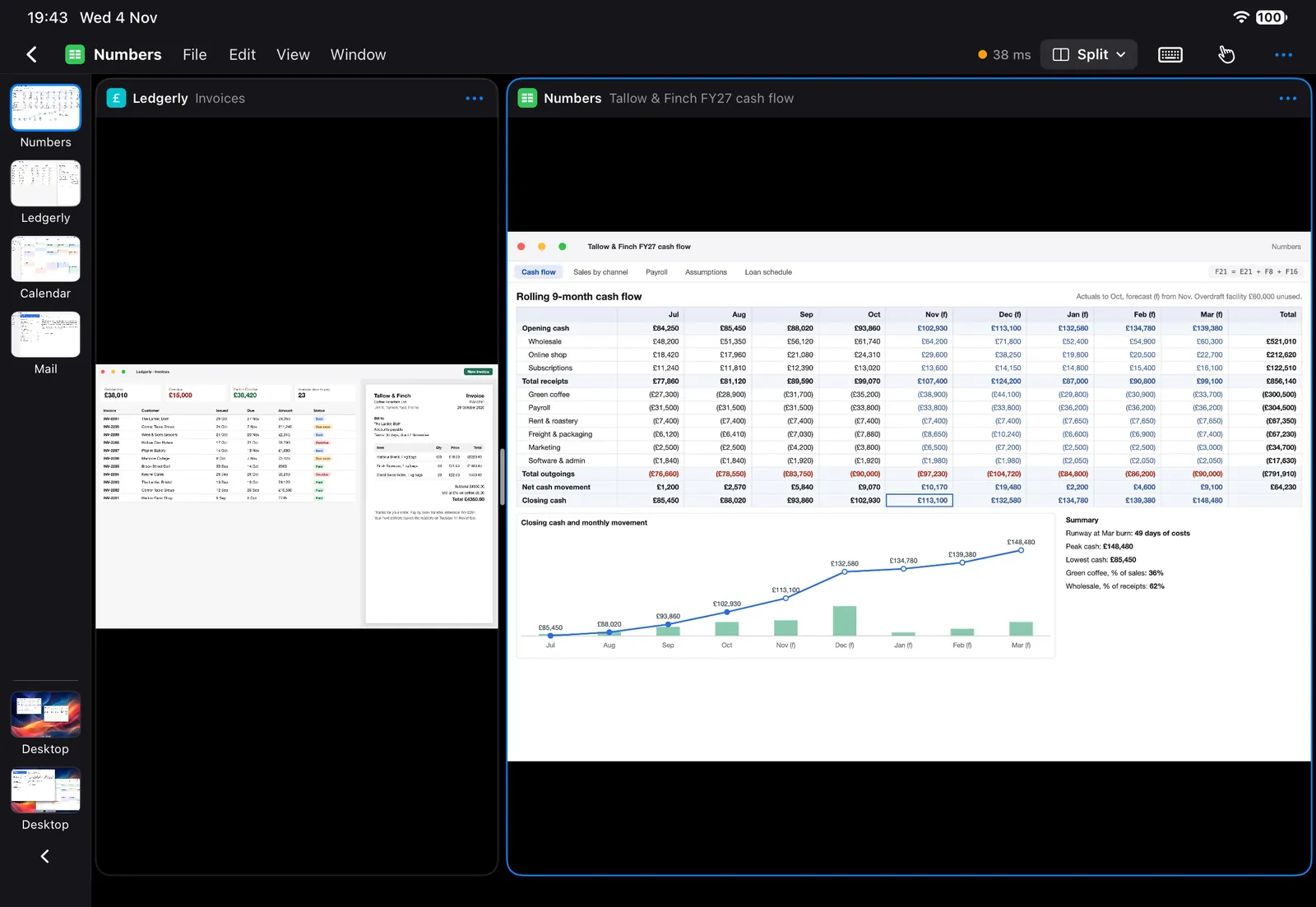
The forecast and the invoices. The plan and the schedule. The thing you're writing and the thing you're pretending to read.
- Drag the divider, and it settles at ⅓, ½, ⅗ or ⅔.
- Swap the two with a tap.
- Replace either one with a different window.
- Hold an iPad upright and the panes stack, with a button to put them side by side instead.
Split is on iPad and iPad mini.
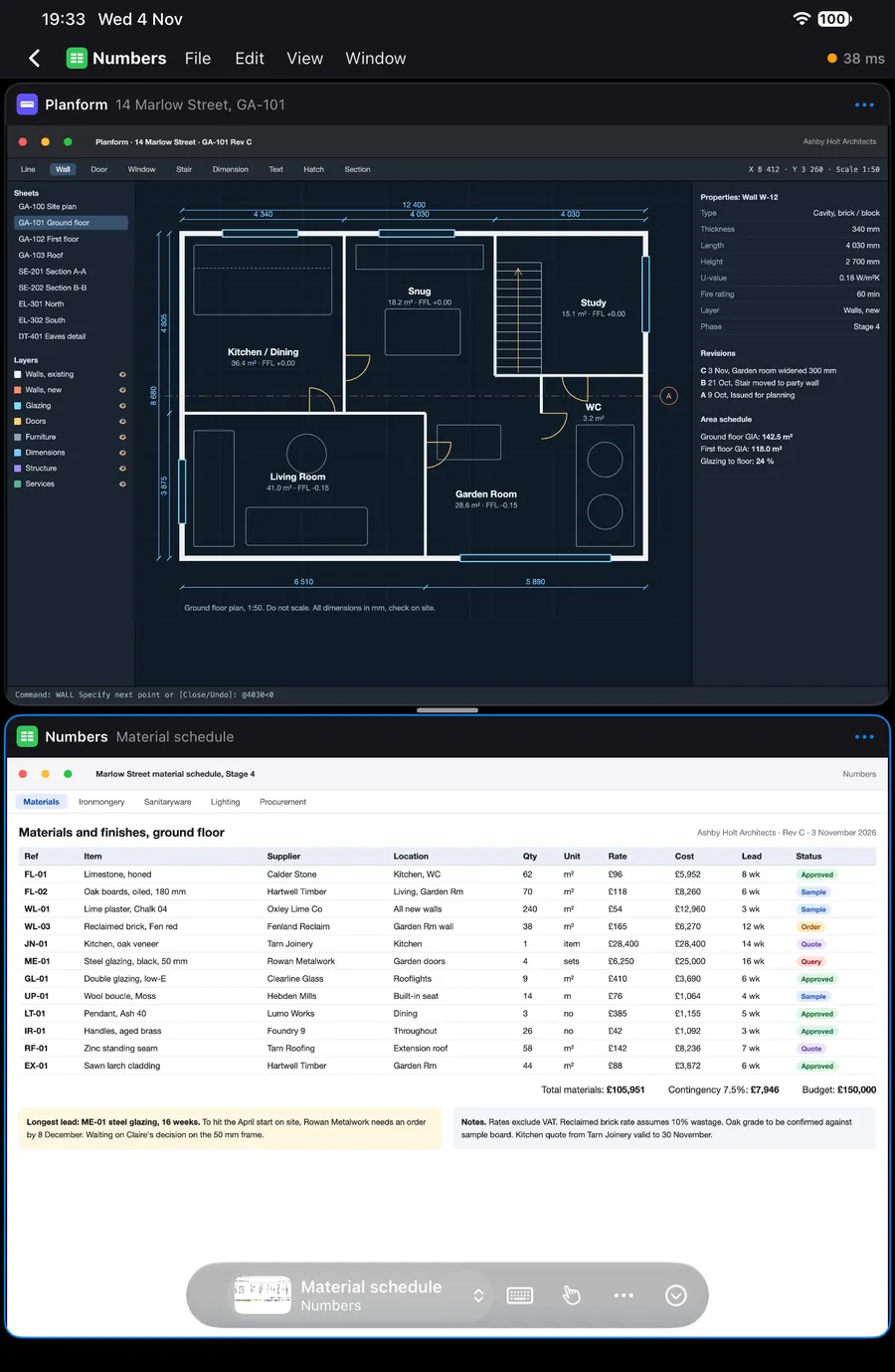
Up to four windows, wherever you want them
Your Mac's windows, moved around on your iPad without touching their positions on the Mac. Drag by the title bar. Resize from the corner. Double tap a title bar to maximise. Don't feel like arranging anything? Choose Overlap, Side by side or Grid.
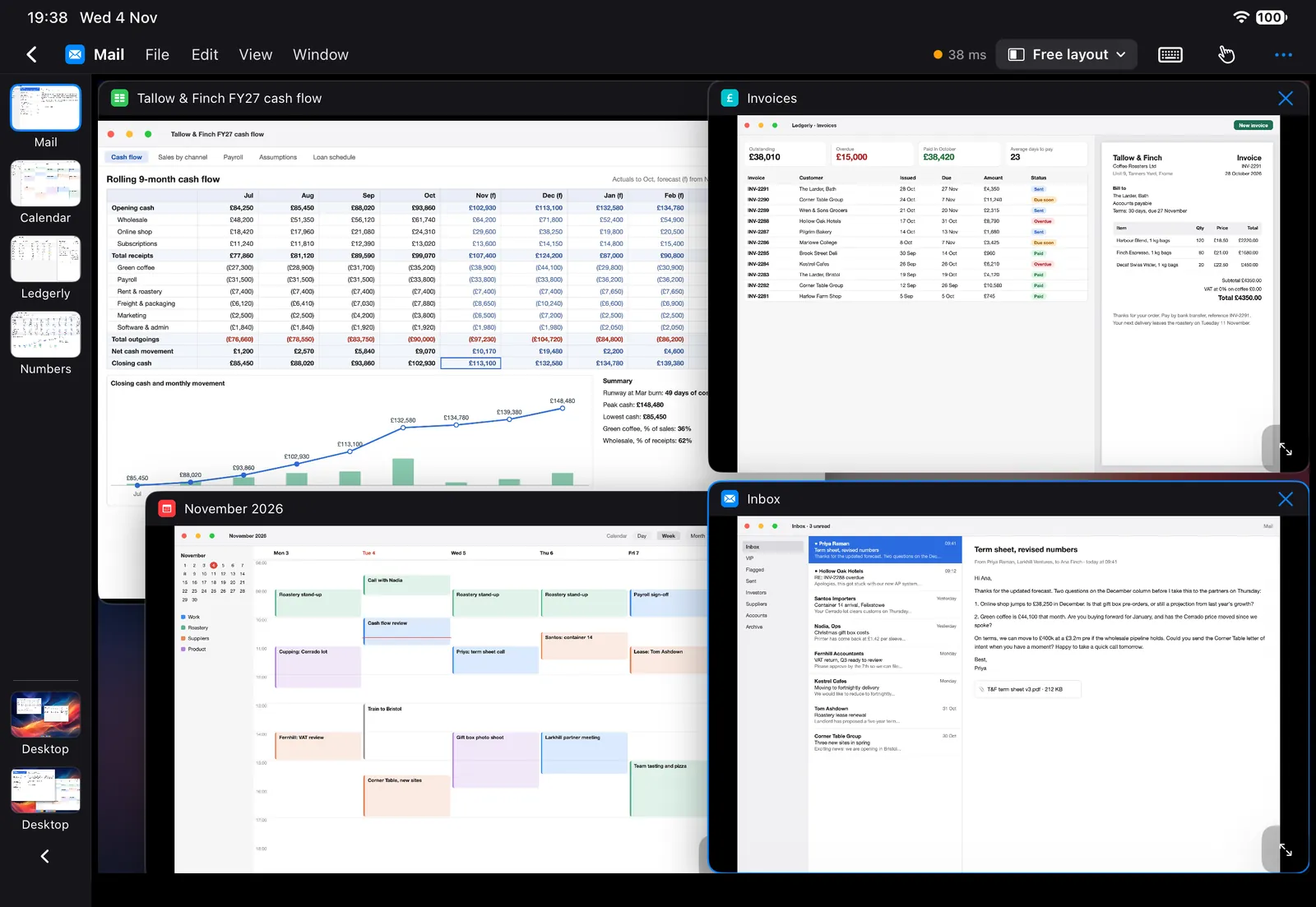
Free layout is on iPad, and on iPad mini in landscape. Each window is its own stream, so four windows ask more of your connection than one. One window takes input at a time: "Tap to control" appears on the others, and tapping brings that window to the front on your Mac.
Switching, the way your hands already do it
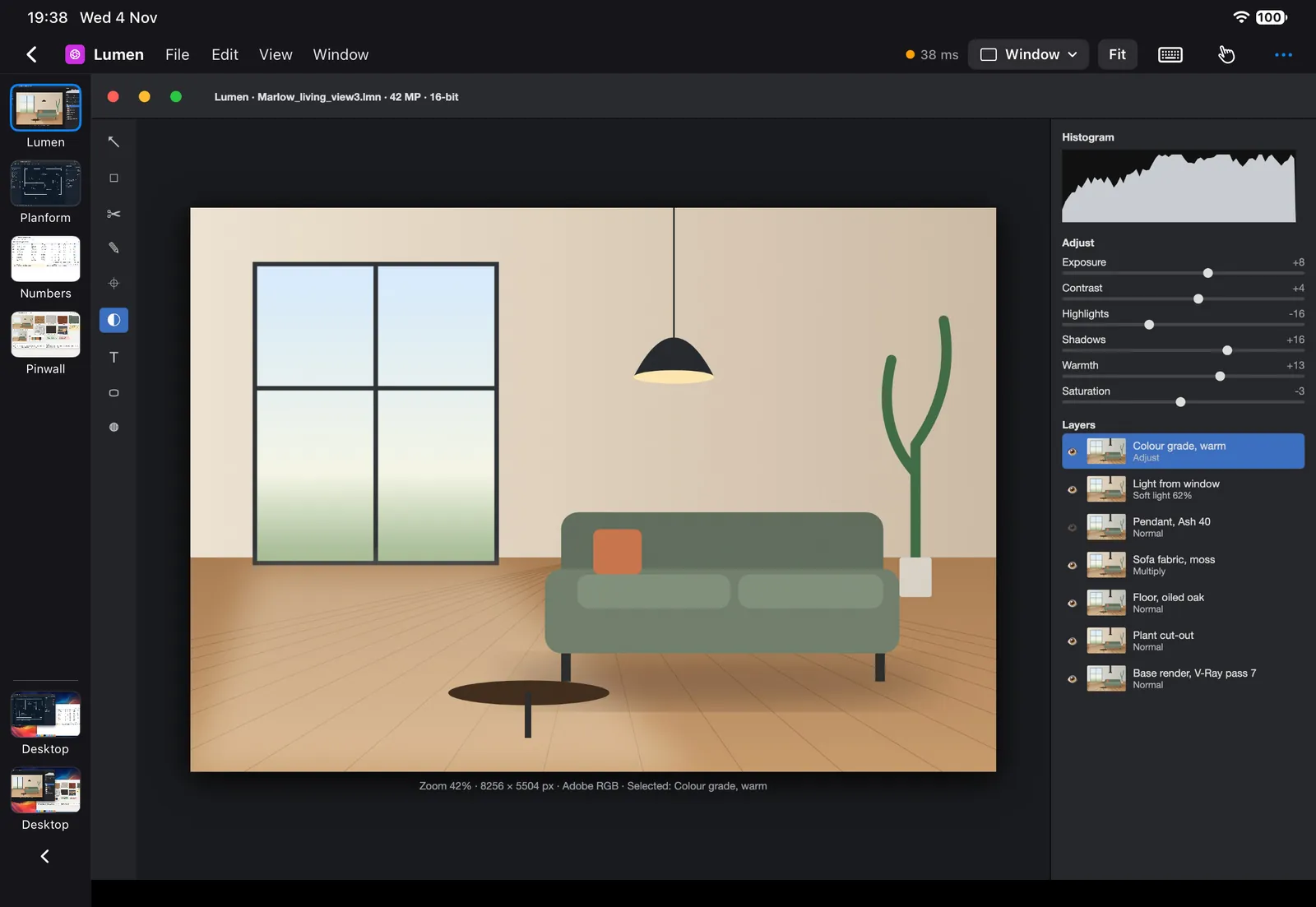
Window rail
On iPad, every open window sits down the left edge with displays at the bottom. One tap and you're there. Add to a Free layout from it. Swipe it away when you want the width.
Recent windows
Swipe up with two fingers, or press ⌘` on a keyboard. Hold ⌘ and keep tapping to move along, ⇧ to go back, ⌥ for the current app only. Let go of ⌘ to open it.
Displays
Each display has a tab in the bar in Desktop. Switch between them, and in Recent windows, tap a window on the display you're viewing and the view zooms to it.
Saved
Zoom in on part of a display, save that view, and reopen just that part later from the Saved tab. Handy for the one panel you actually check.
It's still a Mac. You still need ⌘.
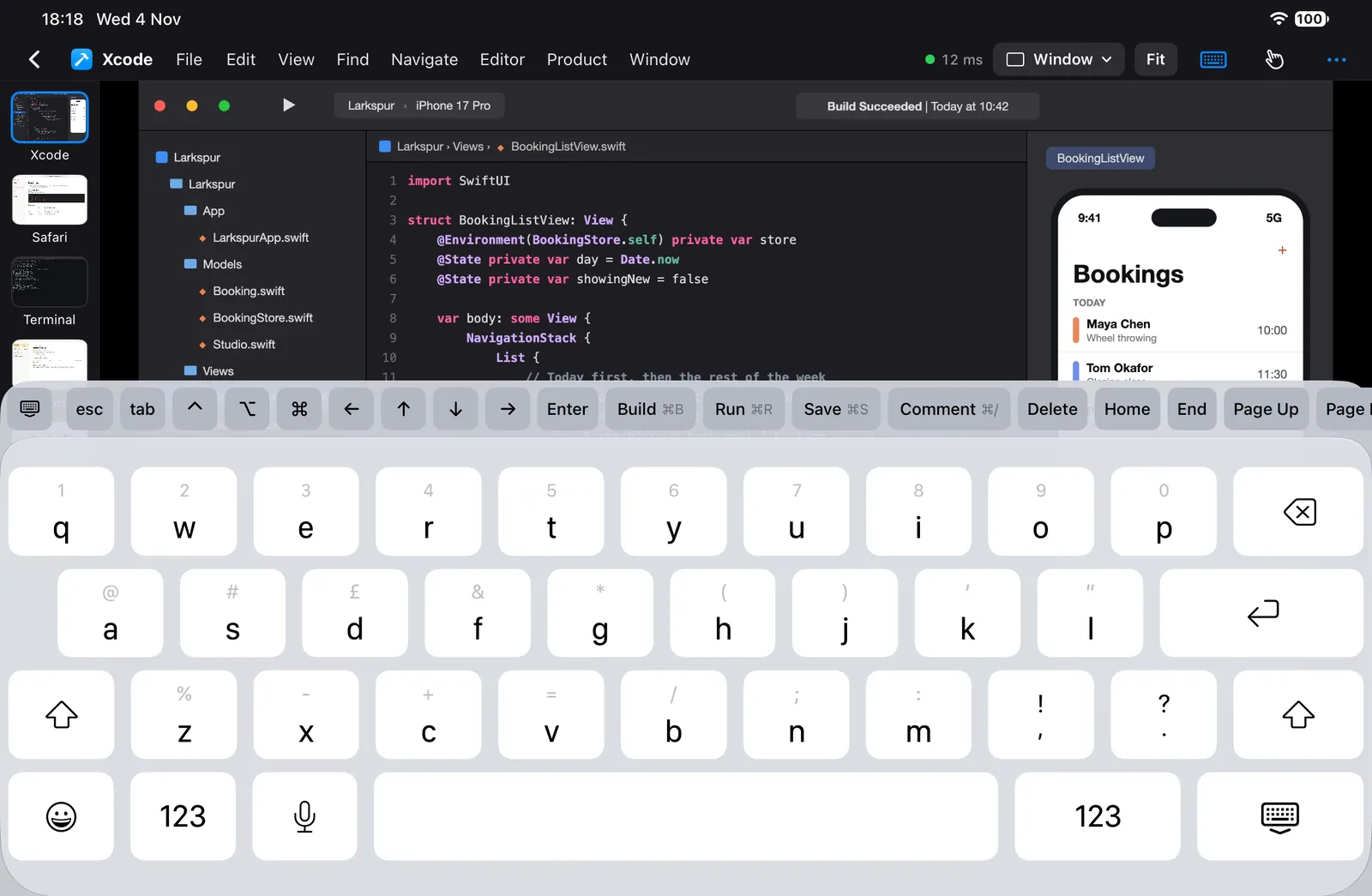
Keys. Esc, Tab, Control, Option, Command, arrows, Enter, Delete, Home, End, Page Up, Page Down, F1 to F12. One row you can swipe and reorder in Settings. Tap a modifier for the next key, double tap to lock it. Hold a key and it repeats.
Shortcuts that follow the app
Xcode, Safari and Terminal have their own keys. Every other app gets Undo, Copy, Paste and Save. Pick one:
Real menus. The Mac app's menu bar appears as a strip along the top of the session. Open it and choose. It's read live from the app on your Mac.
| Do this | The Mac gets |
|---|---|
| Tap | A click |
| Two-finger tap | A right-click |
| Two-finger drag | A scroll |
| Double tap and hold | A drag. Add a second finger to scroll while you hold |
| Long press | A magnifier for small targets, then a precise pick |
Direct touch or trackpad-style pointer: your choice, one menu away. Automatic picks trackpad when a mouse or trackpad is connected.
Real hardware
Keyboards, mice and trackpads connected to your iPad or iPhone work too, with hover, right-click, drag and two-axis scrolling. Most ⌘ shortcuts go to the Mac. The few iPadOS keeps for itself stay on the iPad.
Apple Pencil
Works like a precise finger. It doesn't send pressure or tilt.
Clipboard
Copy on one side, paste on the other. Plain text, up to 100 KB, and it can be turned off in Settings. iOS may ask you to allow the paste.
Mini-map
Zoom in as far as you need. A small preview of the whole window appears top right, with the part on screen marked. Drag it to move around. It fades when you stop.
The one you already have on you
On iPhone, Panelift is one window at a time, opened a little larger than Fit so you can read it straight away. The toolbar docks top or bottom, remembers its place for each app, and folds into one button when you're not using it.
It's for checking the numbers, answering the thing, approving the other thing. For a long stretch, you'll want a bigger screen, which brings us to the trick below.
Split and Free layout are for iPad. Desktop is there on iPhone, and in landscape the controls move out to the sides.
Any screen with an HDMI port is a monitor, if it agrees.
Plug into a display with a compatible USB-C, DisplayPort or HDMI adapter, or use an available AirPlay screen. The window goes on the big screen and your iPhone or iPad becomes the trackpad and keyboard. Or mirror it, if you prefer.