 Panelift
Why remote desktop text is so small, and three ways round it
A big desktop on a small screen has to give somewhere. Here's where each approach gives, including ours.
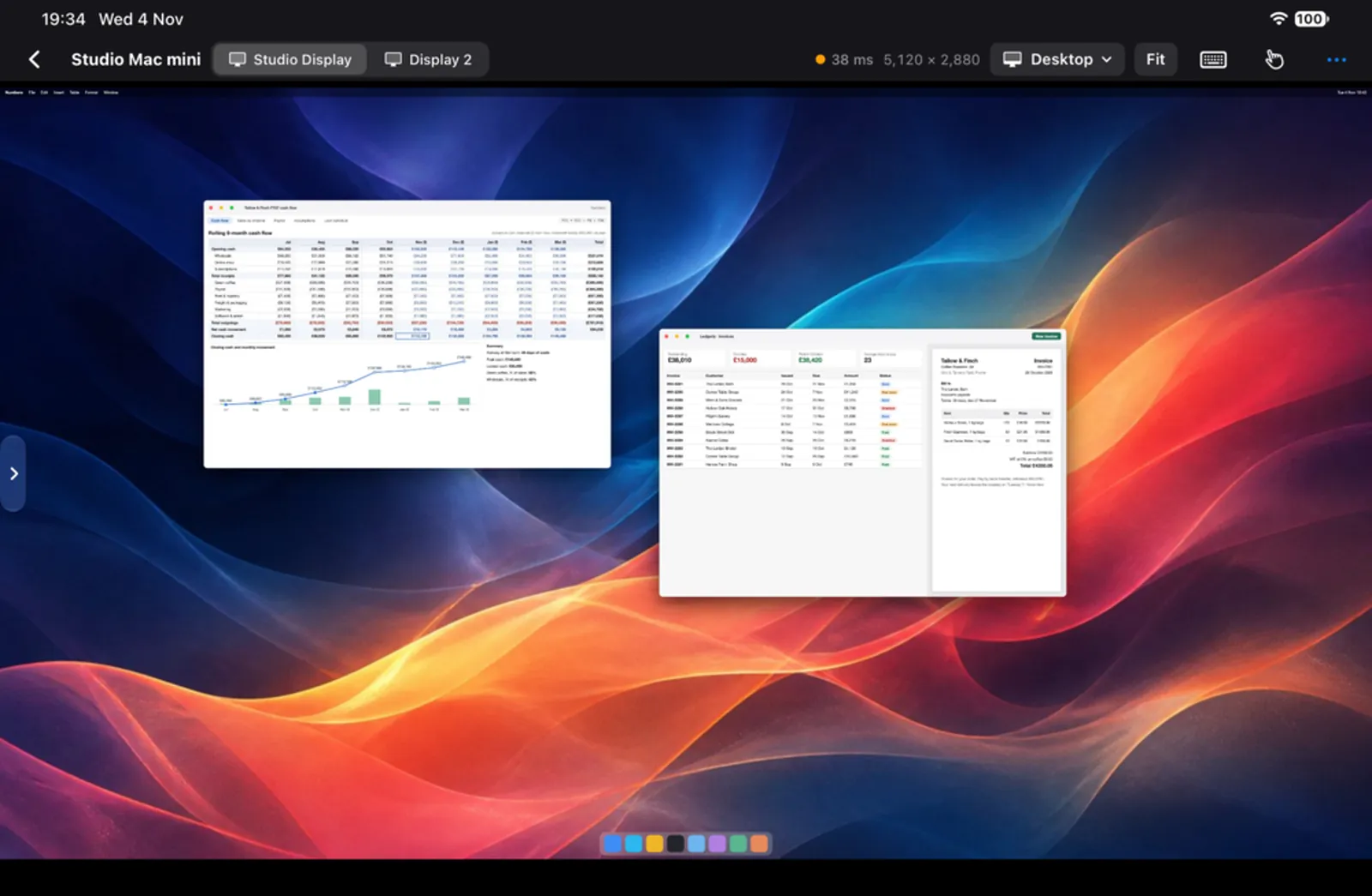
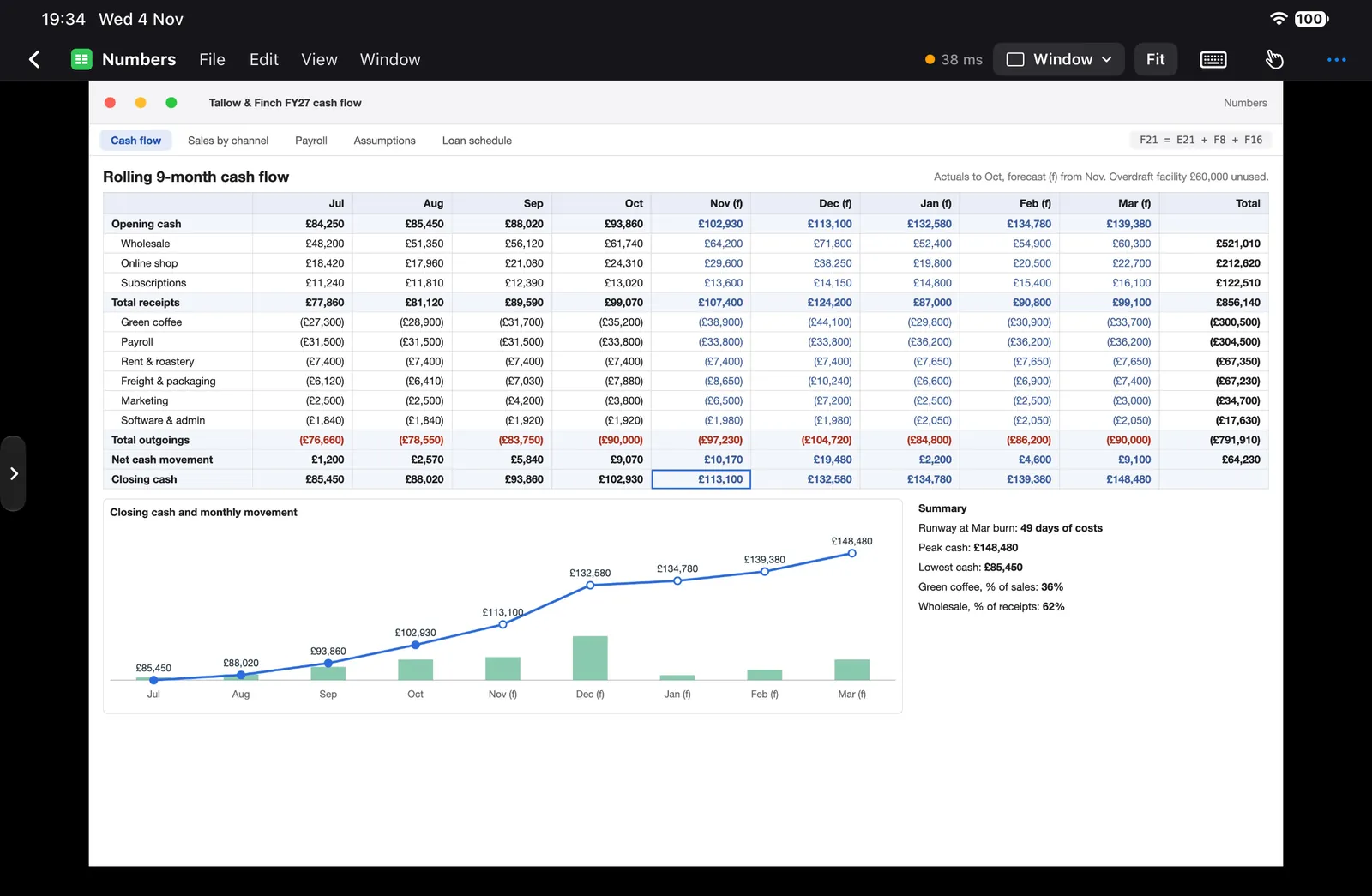
Same device and same window, at the two sizes. Drag to compare.
Where the pixels go
Take a Mac desktop at 2560 × 1440, an iPad mini in landscape, and a 1200 × 800 window you want to read. Allow for Panelift's top strip and window rail, leaving about 1049 × 708 points.
| Whole desktop, fitted | That window alone, fitted | |
|---|---|---|
| Size it's drawn at | about 41% | about 87% |
| 13-point text comes out at | about 5.3 points | about 11.3 points |
So it's a bit over twice the size, on the same screen. This is arithmetic rather than a benchmark, and your numbers depend on your display and your windows.
What you can do about it
The classic remote desktop. You get all of it, exactly as it is.
Good: Nothing's hidden. Your layout is exactly as you left it. This is the right tool if your work really does span the whole screen.
Costs you: You're pinching and panning constantly, and on a small tablet you may have to choose between reading the text and knowing where you are.
Some apps create a display, or change resolution, so the Mac matches your screen. Text comes out at a sensible size, and there's no zooming.
Good: Often very readable and sharp. Everything's at a natural size, with full-desktop behaviour. For many people this is the right answer.
Costs you: Your desktop is now small, so your windows have to fit it. They get rearranged, and they may still be arranged oddly when you get home.
Pick a window and send only that one. This is what Panelift does, along with some others.
Good: The window gets the whole screen, and your Mac's layout stays exactly how it was. Switching is about choosing a window instead of hunting for one.
Costs you: A wide window stays wide, because nothing reflows. Some things aren't windows. Menus, panels and sheets from other helper processes may need Desktop. And macOS doesn't list windows that are minimised or on another Space.
Getting more than one window back
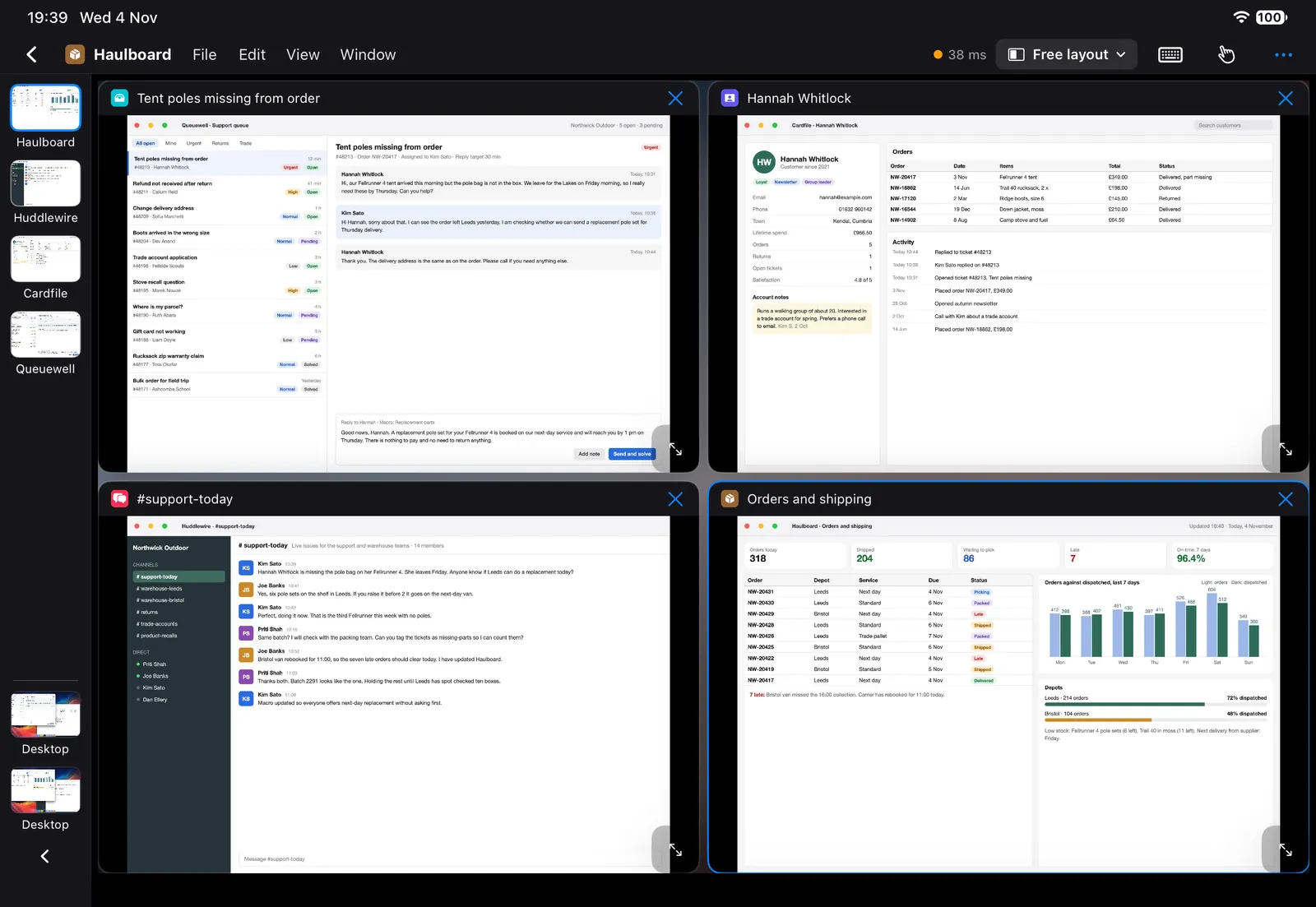
If you only ever saw one window, you'd miss your desktop. So:
- Split puts two together.
- Free layout moves and arranges up to four, in positions that don't exist on your Mac.
- The window rail keeps everything else one tap away.
- Desktop is still there, for every display, when the window approach isn't what you need.
An honest guide
Use a whole-desktop or resolution-matching app if:
- Your work really is spread across the entire screen.
- You need sound. Panelift doesn't send any.
- You need file transfer built in. Panelift doesn't have it.
- You also need to reach Windows or Linux machines. Panelift's host is Mac only.
- You often have to work from networks that block direct connections.
Use Panelift if:
- You mostly work in a few windows at a time.
- You're on a small screen, particularly if you want an iPad mini remote desktop.
- You want to leave your Mac's layout alone.
- You'd rather not set up a VPN.
Several of these tools can live on the same iPad.
See it on your own windows.
It's your text at your size that matters, not our screenshot.